We are going to take it all the way back to n00b town and walk through how to make a Google Forms quiz, from scratch. If you have never done this or if it has been a while this is the video for you to learn from and follow along with.
This is an in depth walk through on how to make a Google Form. This one we create as a quiz with an answer key. This is a more up to date walkthrough than previous versions I have available. I did try to keep it as short as I could so it includes areas of sped up video where I am completing something I already explained. Don’t let that scare you (It happens).
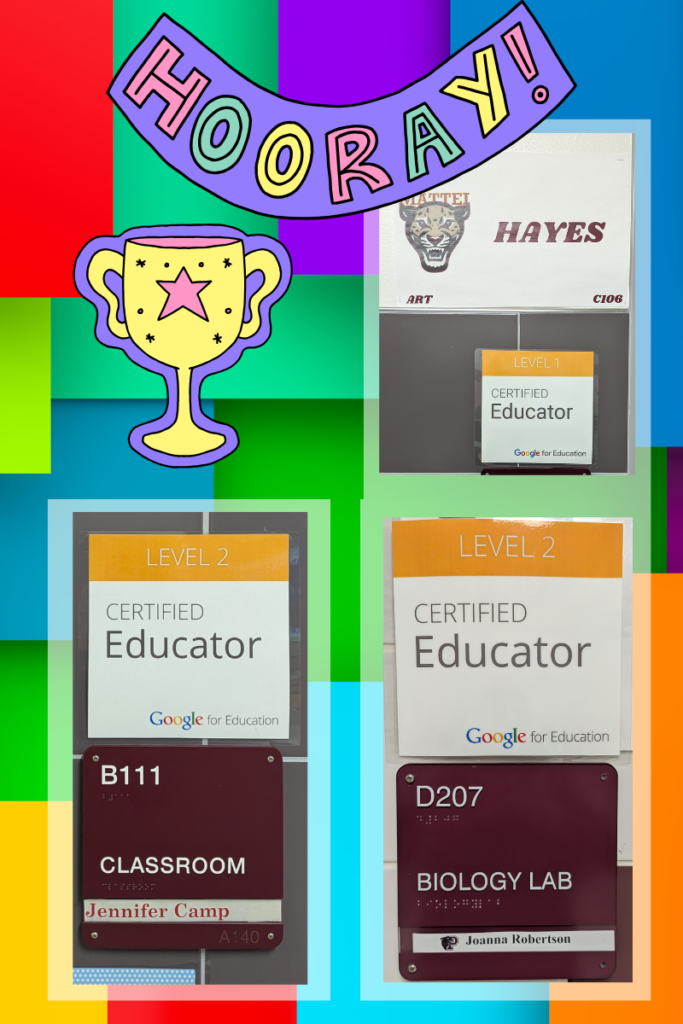
Congratulations to the teachers who completed their Google Certification exams last Saturday. I appreciate you taking time out of your weekend to accomplish that. If you are one of the many people who joined me for this last year, can I make a door sign for your class as well? Let me know and I will get one for you too.
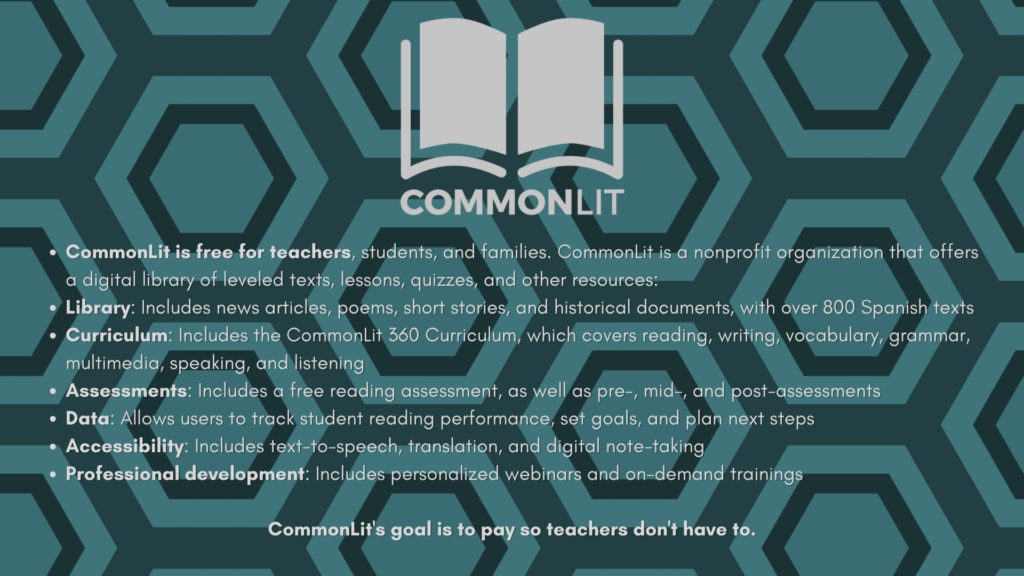
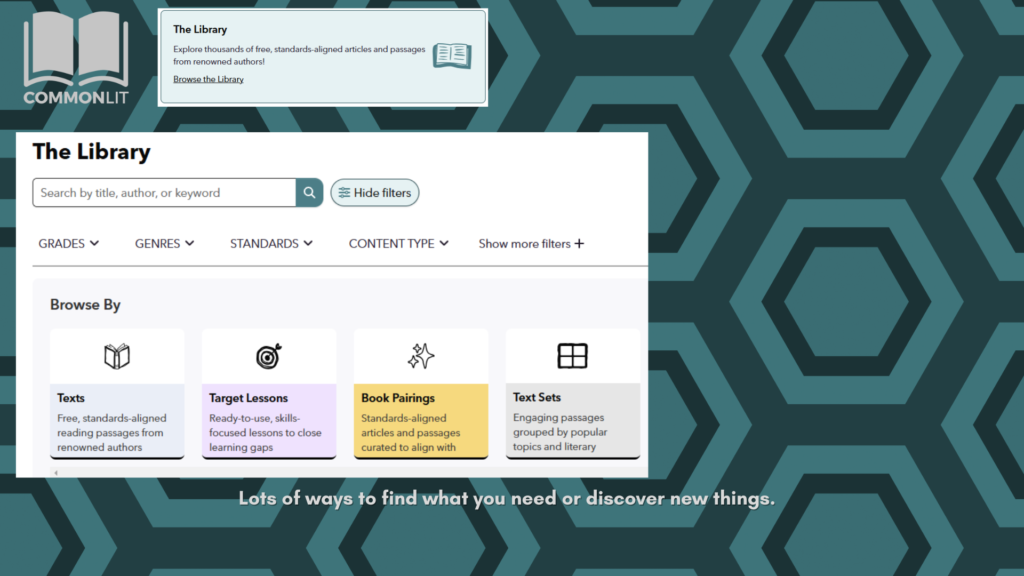
Have you had a chance to check out BrainPOP yet? I heard a couple elementary campuses have access to that. I’m not sure who but check with your principal if yo aren’t sure about your campus. Here is a quick run through what it offers.
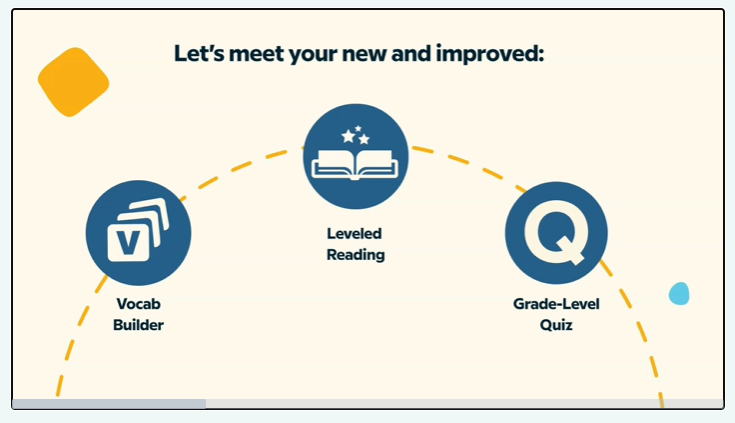
BrainPop includes vocabulary flashcards. It also prompts students to use context clues and word analysis to discover the meaning of words.
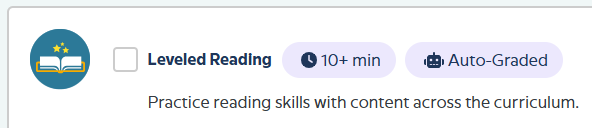
Provides reading passages in different reading levels to differentiate for your students. Reading passages include embedded assessments.
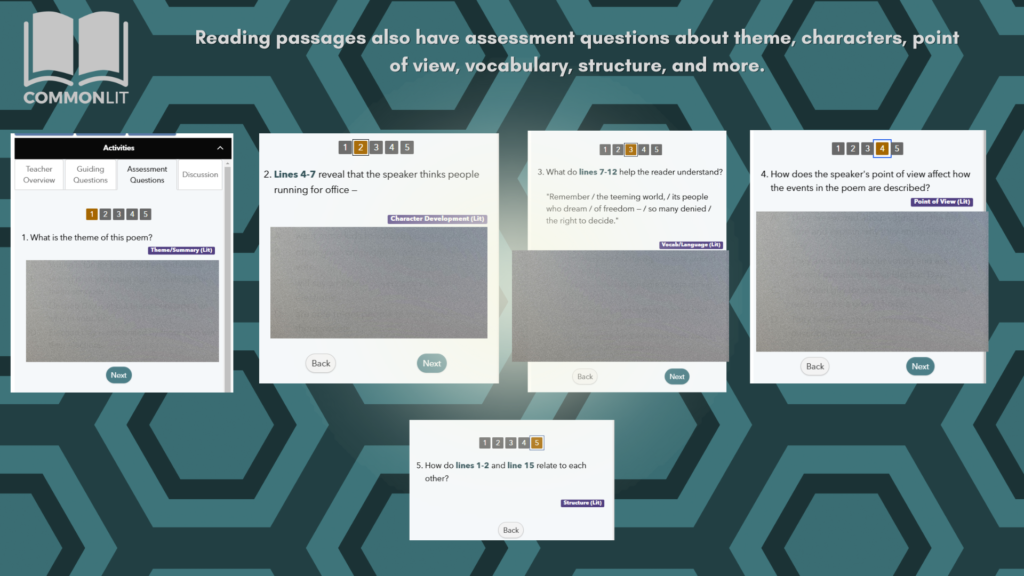
BrainPOP also provides quizzes to assess students reading and comprehension levels. These quizzes use multiple interactive item types. Of course it also provides you with standards aligned student data based on all these activities.
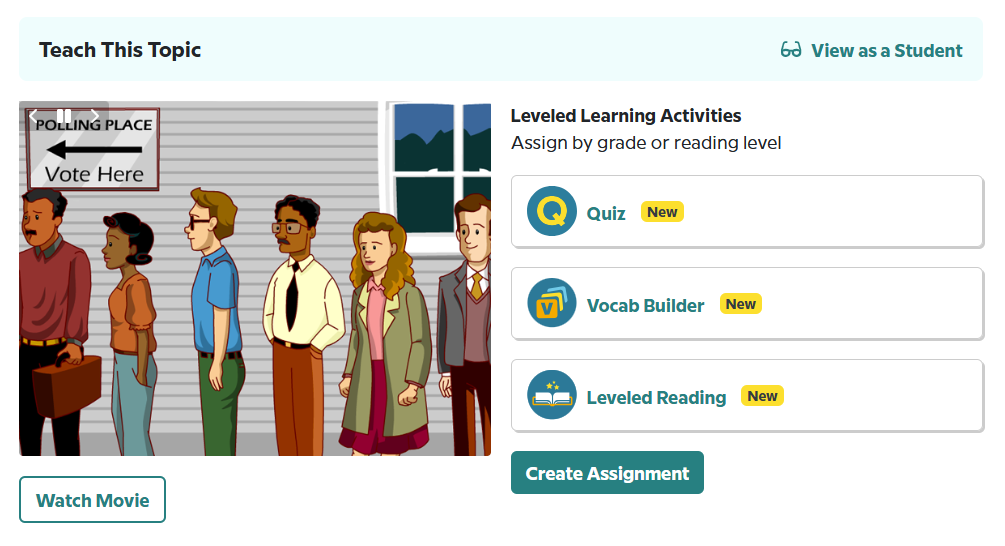
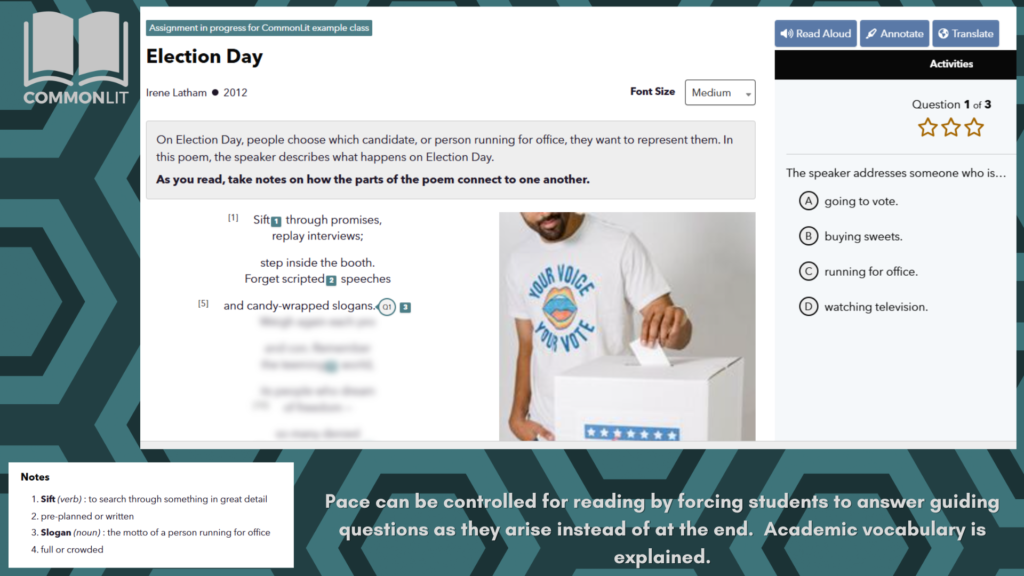
For example, this lesson on voting, very topical, very timely, very mindful.
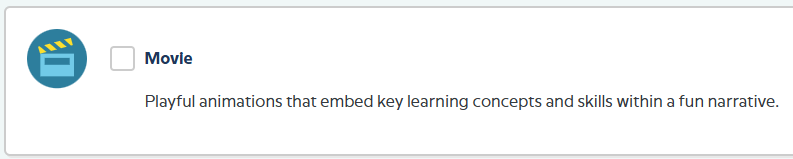
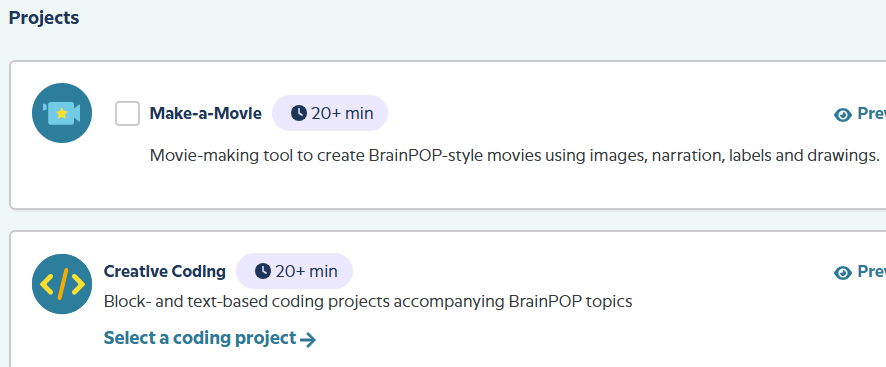
Inside “Create Assignment” There are up to six parts of this lesson that we can assign. Starting with the introductory movie for the topic. Vocabulary Activity, A Quiz, Leveled Reading activity as well as: Two projects to further practice their knowledge and skills by making a movie and creative coding.
Brain Pop has more than 1000 topics that have students practice skills while learning standards. Topics are cross curricular by using RLA standards attached to every unit even if the topics are history or science related.
The introduction video recommends using the Topic movie with it’s imbedded questions as a whole group activity. The Vocabulary as a small group activity. The leveled reading activity includes Immersive Reader tools.
Let us see if there is anything different about BrainPOP Jr, which is aimed at your K-3 students.
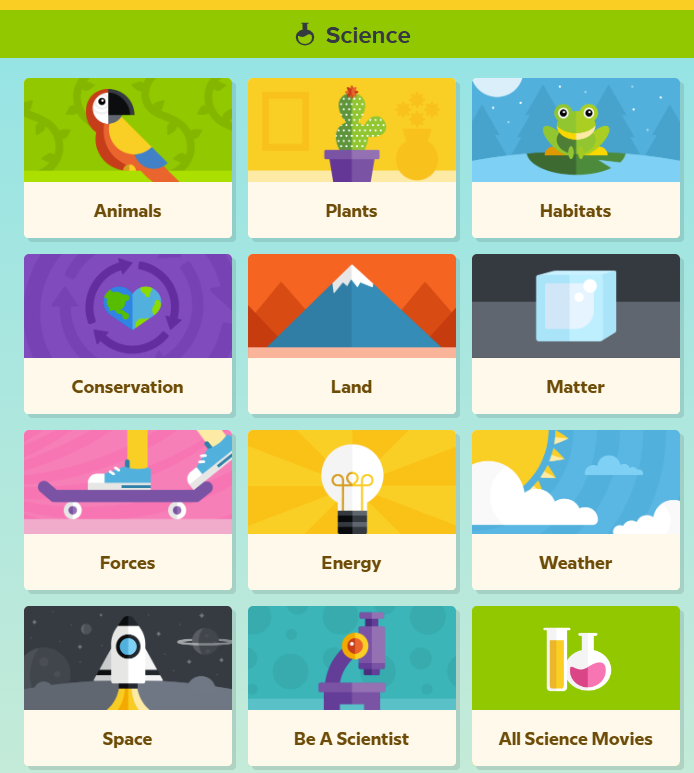
Activities can be explored by topic.
Which also break down into more specific subtopics.
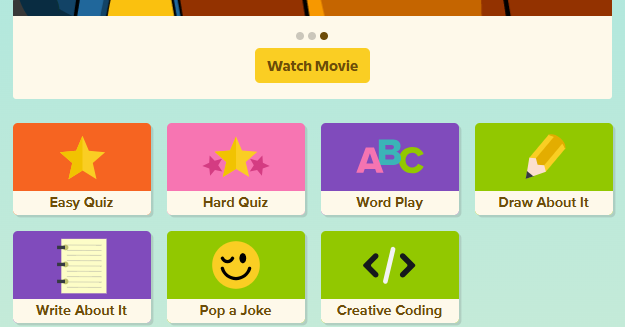
Topics similarly include quizzes, word games, drawing, writing, and coding activities.
Get your classes going and assign some activities if you haven’t already.
Chromebooks have a built in camera app. Your students can find that app by searching for it. Once they open the app have them pin it to the shelf (task bar).
This camera app can be used to take photos and shoot video with the Chromebook.
If you can’t find your photo or video check out this video.
Here is a super quick demo of how to screen capture on a Chromebook
Your students can use Canva to create and screen record videos. Including Greenscreen. Canva can also be used to edit and add music as well as special effect to videos that your students record with their camera app.
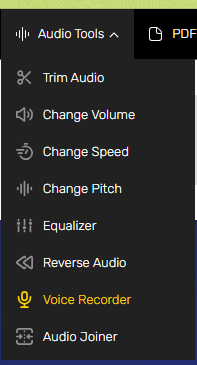
Need to only capture audio? My go to tool for this is https://online-voice-recorder.com/ It is free, super simple to use, and even offers tools for editing sound clips that you record.
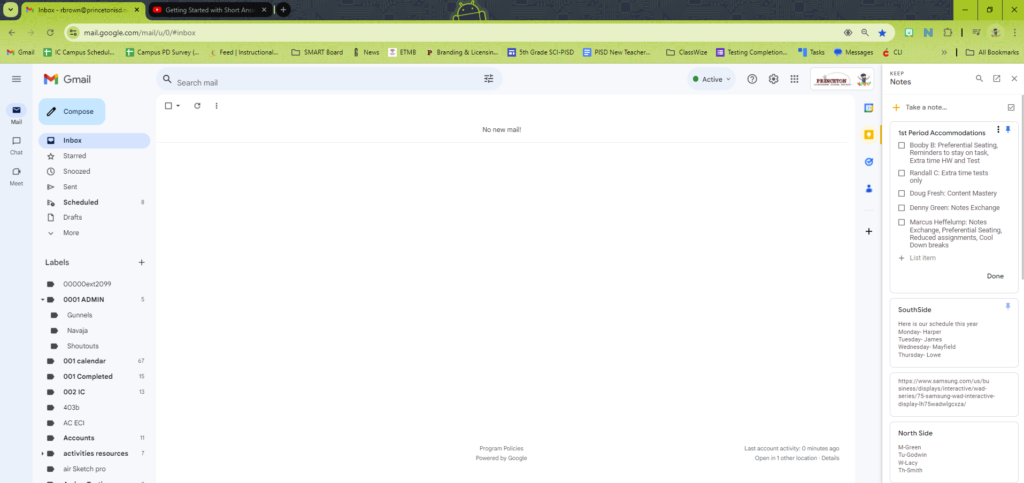
The Google Side Panel is a favorite of mine. I keep track of my tasks there on several enormous to-do lists of escalating priority. Google Keep is another hugely important tool located over in the side panel as well. Google keep is like little digital post it notes that you can quickly access and view from a ton of places in Google apps where that side panel resides.
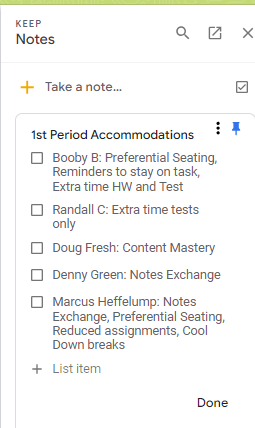
In this modern world of today I would use Google Keep to replace the clipboard with student accommodations that I used to carry around class. Google Keep is a great place to gather that data for quick access from the computer or even the Keep app on your phone.
Providing student accommodations is a critically important responsibility. Google Keep can help you keep track of those and train your brain until they become habit.
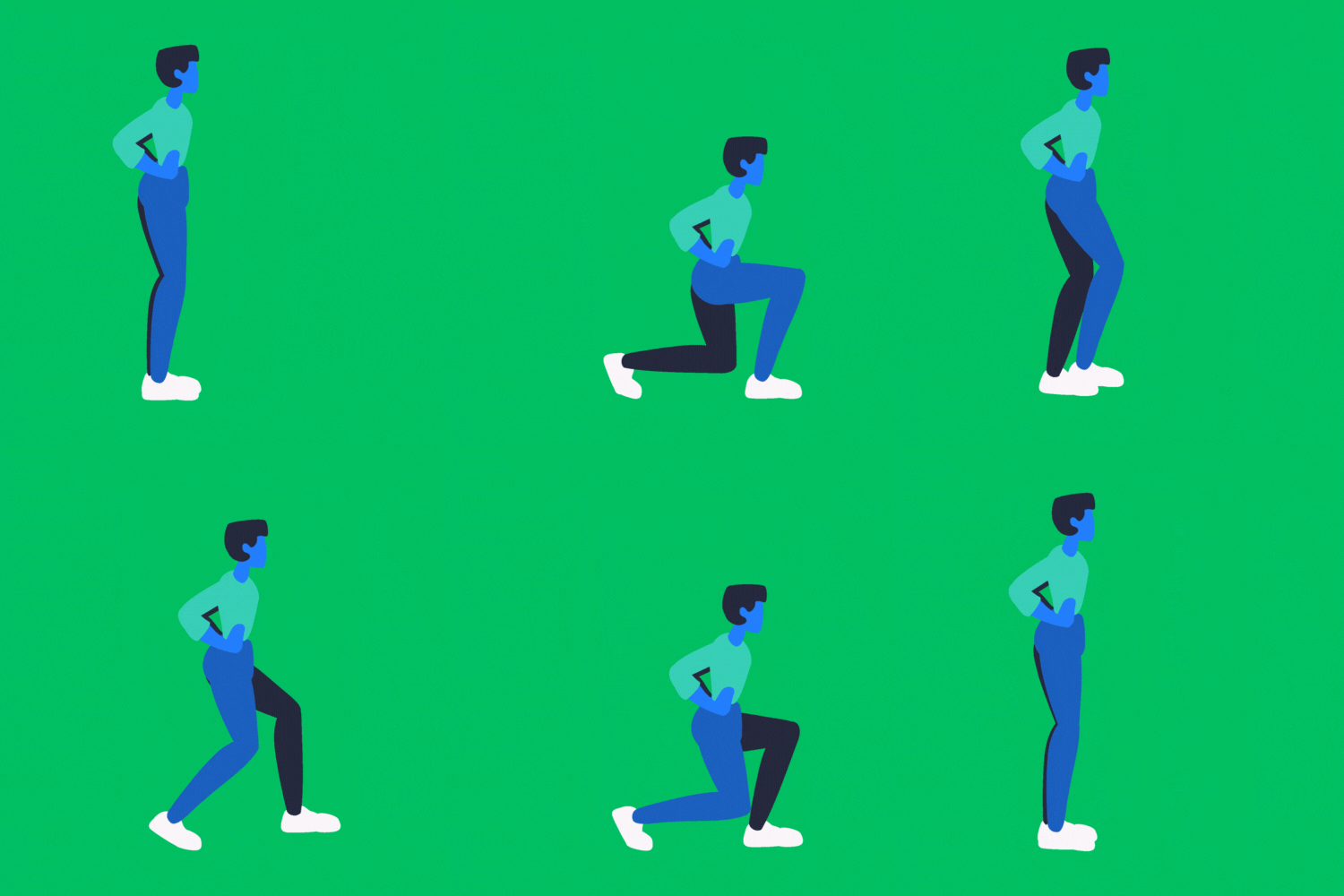
Use Canva to make .gif files of you or your students demonstrating exercises. You can video it then upload to Canva, remove the background if you would like and slash it up with some sort of flashy background. Then Download .gif files. Then put those .gifs in a slide show for warm up exercises.
Have your students film edit and produce instructional work out videos with a Chromebook and Canva.
Here are some folks to follow
Here are some content specific useful Apps
Use Google Keep on your mobile device or a Chromebook to keep notes of what is or is not working and needs adjustment before using that activity again.
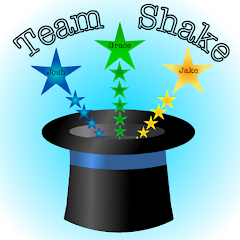
Split your class up into even teams with an app like Team Shake. You can even set parameters of students to include or exclude together.
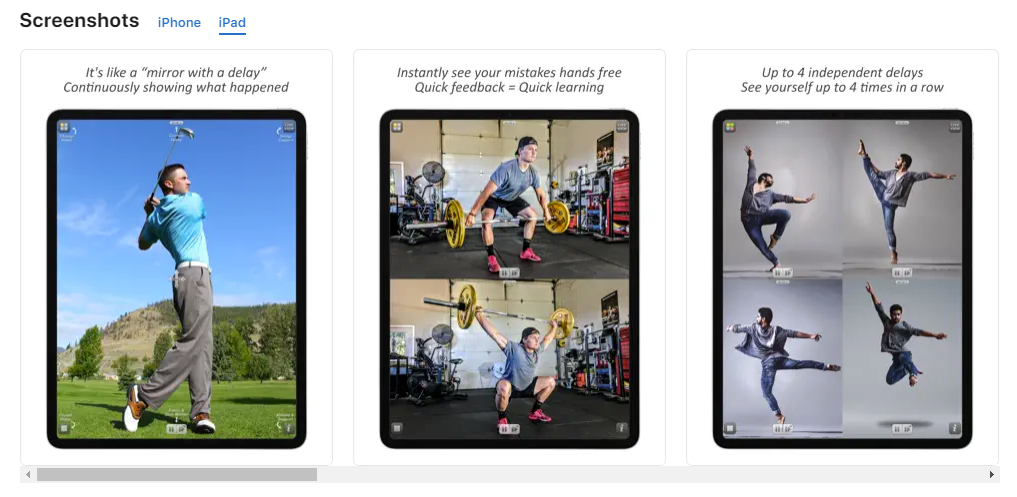
Use an iPad and the BAM video delay app to let students view their own athletic performance.
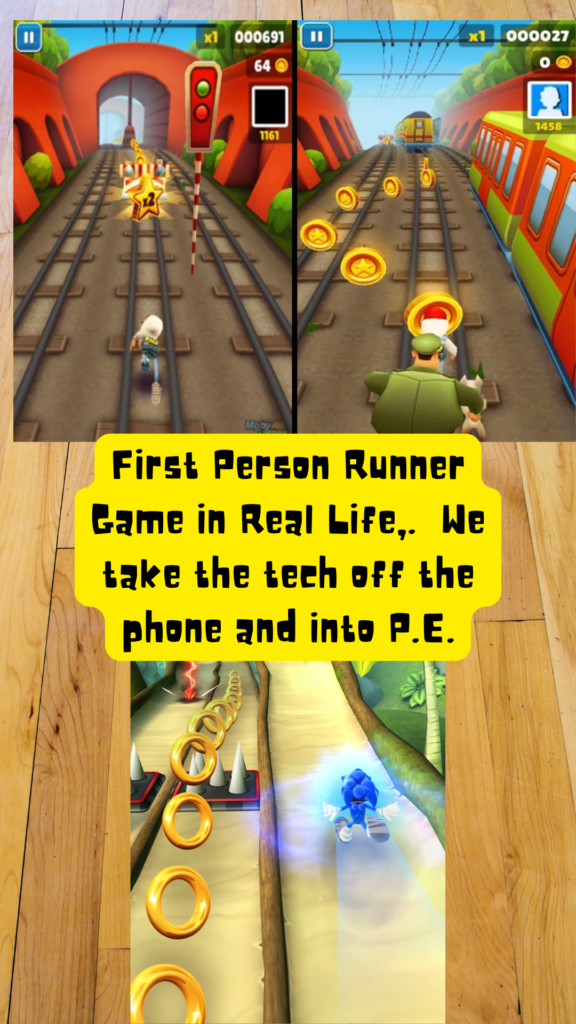
Reverse Engineering Tech Games
Safer than Subway Surfing
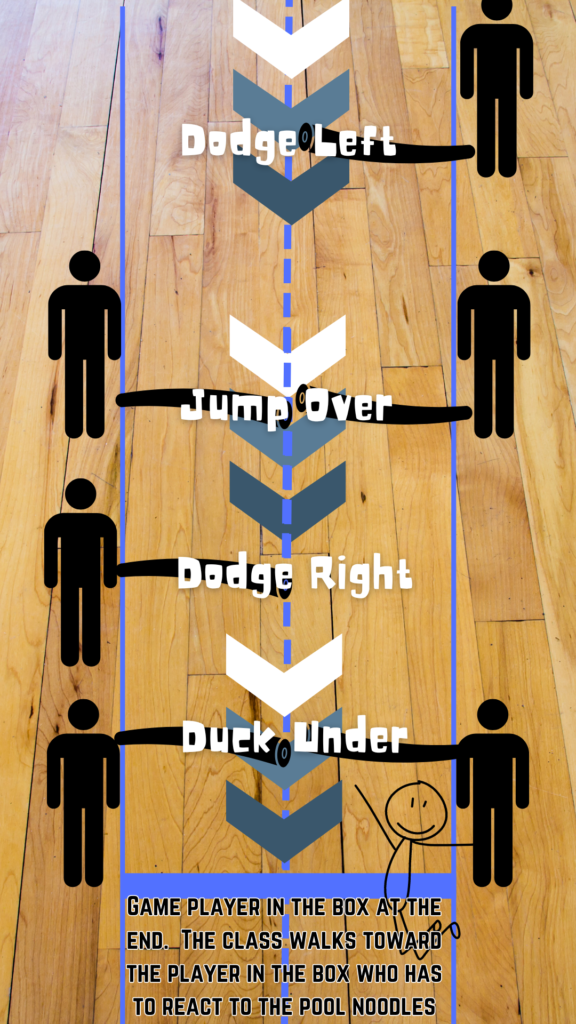
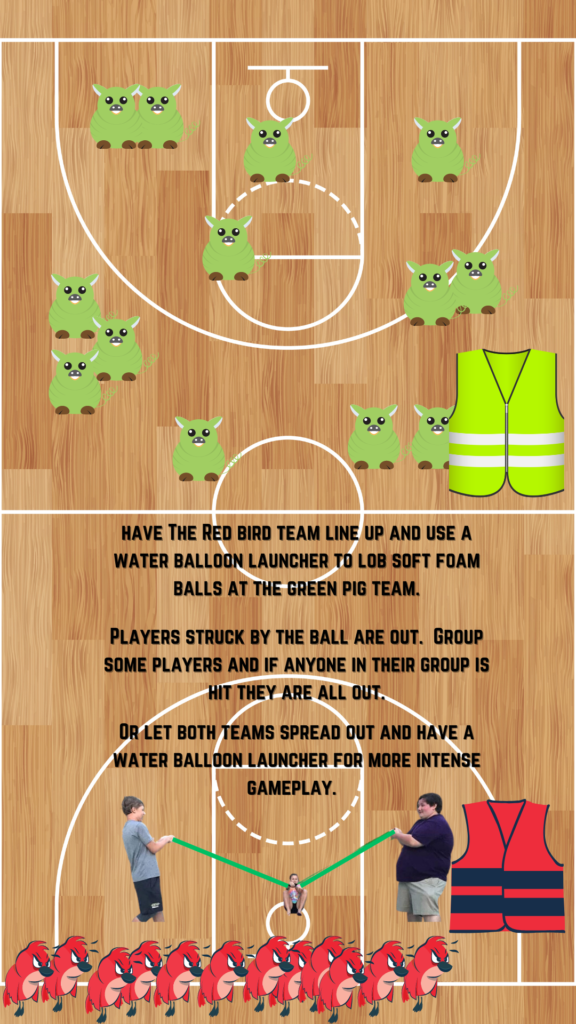
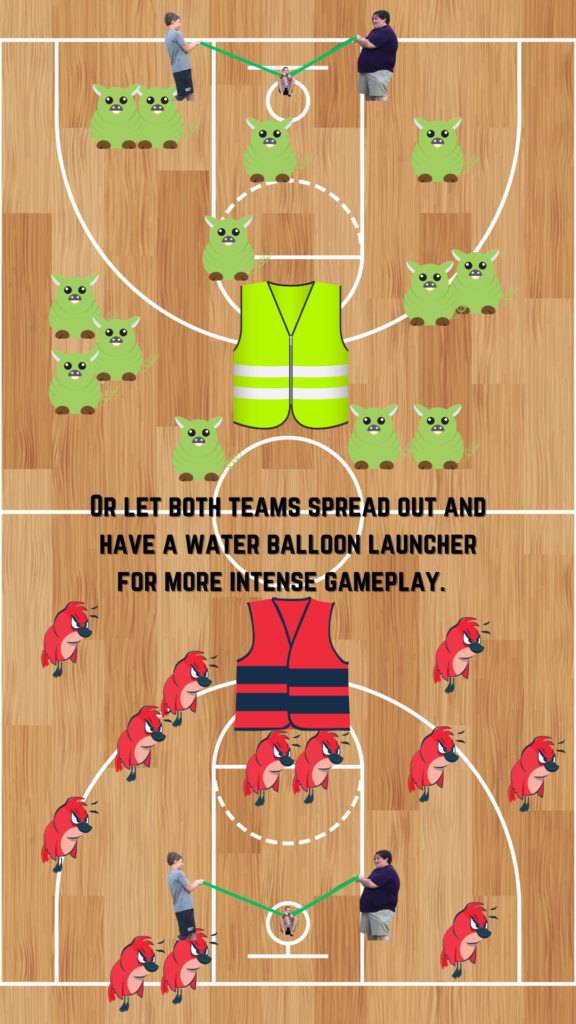
Let’s recreate a first person perspective running game. With this basic idea illustrated on the left, one stationary student can be the player situated in box taped off on the floor.
Tape off some lanes across the floor to the “Player”. The rest of the class will present the obstacles for the player dodge, duck, or jump with something safe like pool noodles.
This basic format could be played with any theme to make it more exciting.
Put your player kid in an empty kiddie pool as their square with some arm floaties on to embrace the pool noodles.
We could even make it a modified version of Crossy Road and give your player a chicken hat. Tape some pictures of vehicles on your pool noodles.
Get cross curricular and throw in some even and odd numbers on your pool noodles with a twisting challenge incorporated.
Dancing games are great exercise! Find some screen captures of Dance Dance Revolution and have students play along with the video playing on your projector. I made an example in Canva. It goes through the dance move pattern 4 times getting faster each time. Encourage your students to develop their dancing style with their arms while their feet are busy landing in the squares.
Another spin on this we could also make a Simon like memory game where we keep adding a move and repeat from the beginning. For Example: Left Square. Left Square, Middle Square. Left square, middle square, left square. Left square, middle square, left square, right square. Left, Middle, Left, Right, Middle. Left, Middle, Left, Right, Middle, Left.
Projector Play Along
Project largely on the wall a video of targets moving across the screen and see if your students can hit the target by kicking a soccer ball or chest passing a basketball.
Set up a shooting drill around the basket ball court. Video tape yourself or even better your principal shooting from each spot until they make them all. Display that up on the wall for your students to race against to see if they can beat the Principal through the drill. 3 pointers all the way around maybe? “Can you make 5 free throws in 37 seconds like Mrs. So and So did ? I’m putting her on repeat try to beat her.”
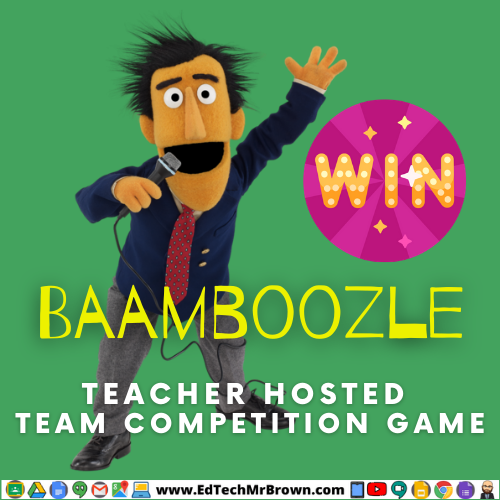
You could play Baamboozle in gym class easily because it doesn’t require individual student devices. Got some PE reviews that I can turn into a Baamboozle game for you? With BOY and EOY tests there must be some sets of vocab and questions that we can make into a baamboozle.
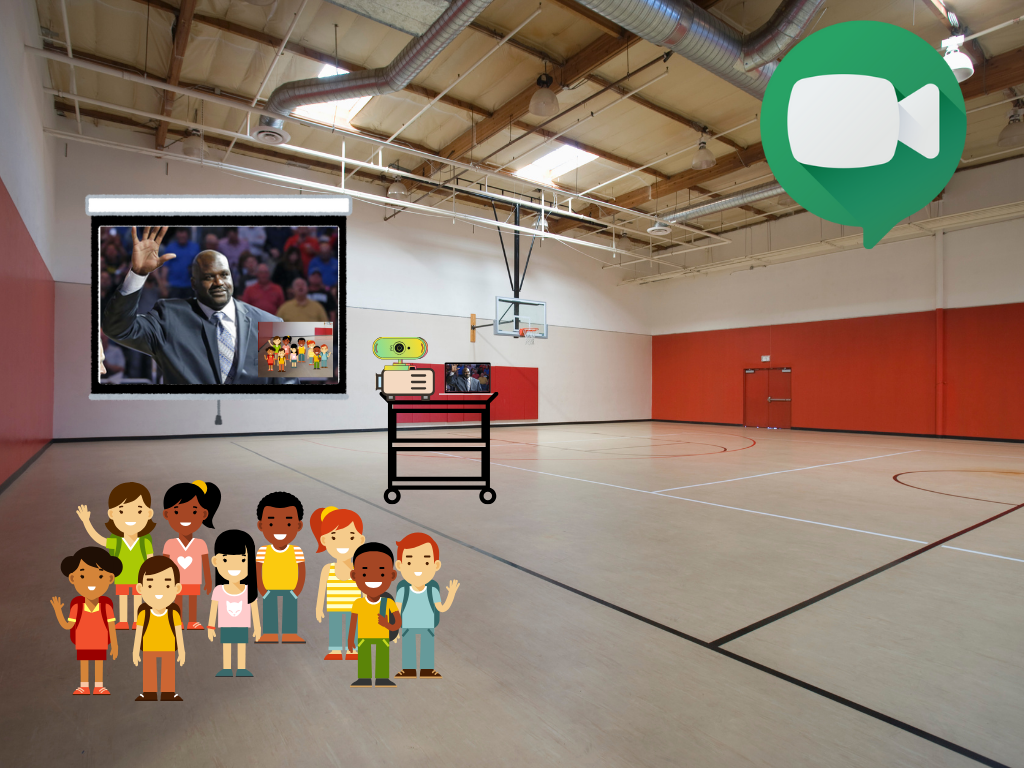
Get a web cam for your Chromebook and projector cart and set up a Google Meet interview with someone related to what you are studying. Maybe you’ll bump into Shaq at Wal-Mart and get that set up.
Pay very little attention to the man talking, but watch where his mouse goes and notice the changing languages of the Closed Captions. Probably open it up YouTube and go full screen for a better view.
I was informed that most if not all Elementary campuses were subscribing to Flocabulary for this school year. Here is an introduction to that program and what it offers. I met with a representative from Flocabulary for a “tour”.
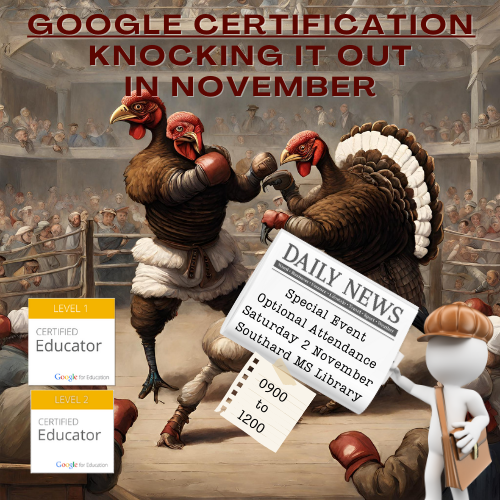
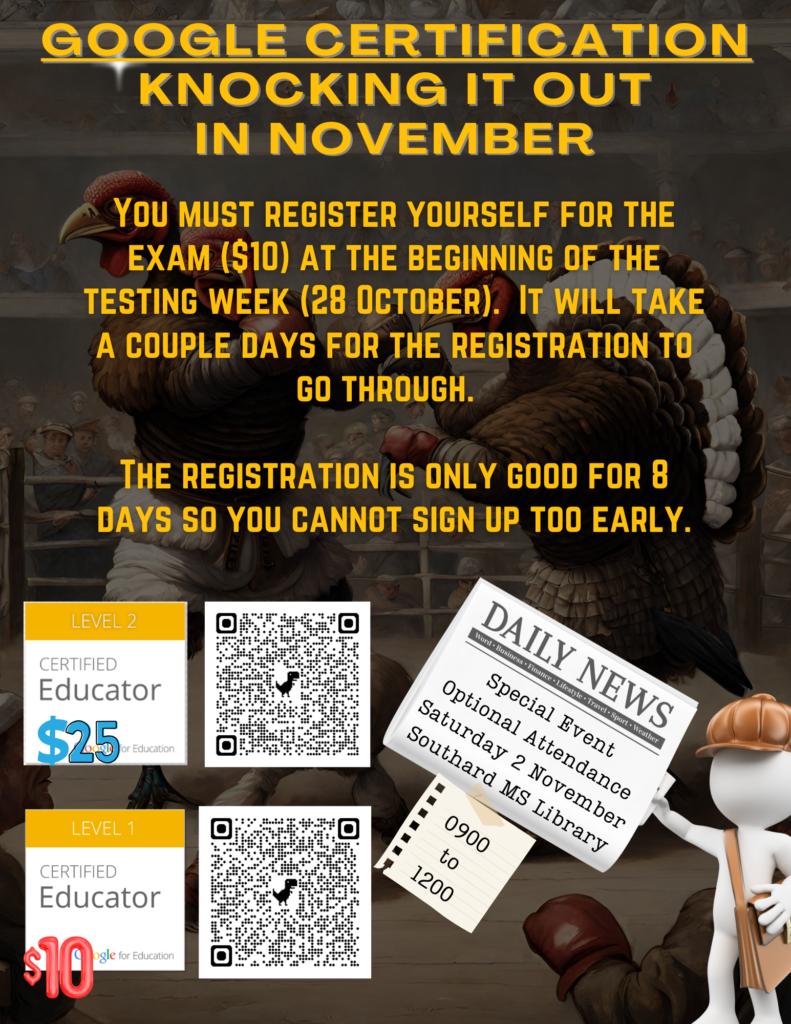
Greetings Teachers!! This upcoming Saturday 2 November we will join together to take our Google Certification exams. We will meet up at 0900 that morning in the Library at Southard Middle School.
The links below offer review resources as well as registration.
If you took it last year you don’t need to renew level 1 for a few years but you can take level 2. Level 2 takes the same knowledge you showed comprehension of in level 1 and has you apply it in a Google Drive sandbox.
Follow along as we install and operate the Natural Readers Chrome Extension for a fantastic text to speech read aloud experience. This is a wonderful tool for your students with Dyslexia or other reading accommodation needs.