Annotate.net
Let’s dive into Annotate.net and see how to record and annotate some clips. Annotate.net also let’s you mirror your tablet onto your screen.
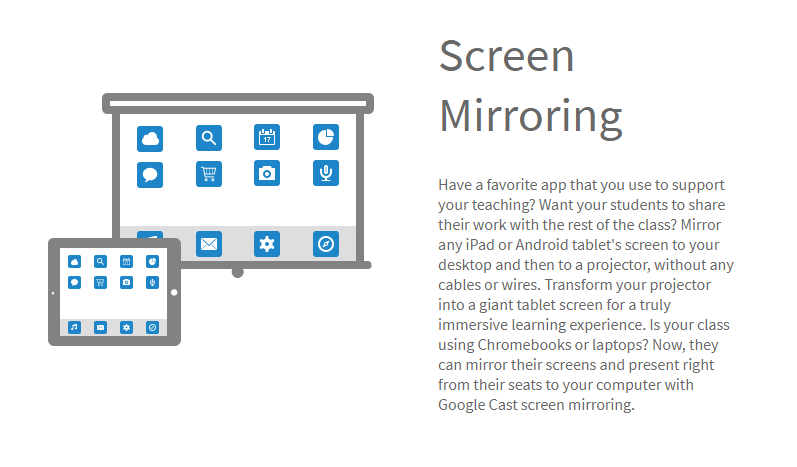
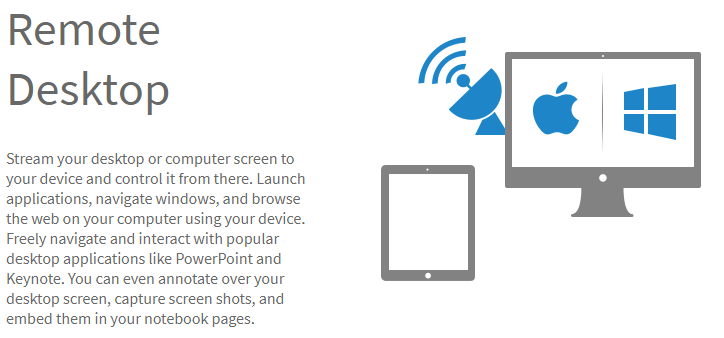
Let’s dive into Annotate.net and see how to record and annotate some clips. Annotate.net also let’s you mirror your tablet onto your screen.
Here is a simple way to set your Pre-K students up on a Chromebook to practice listening to a computer read words.

Start by creating a Google Doc that you will type your words in.
I made the font size 150 and that worked out well for me. I easily fit one word on a page.
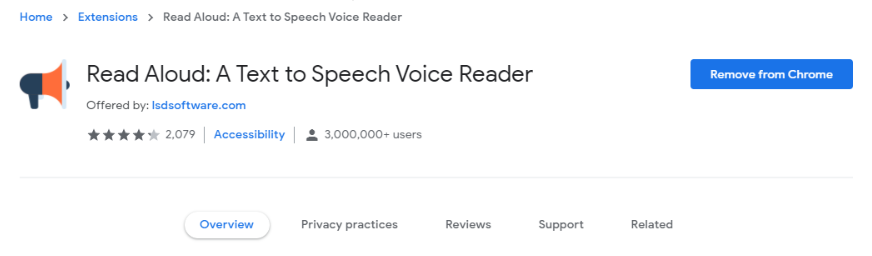
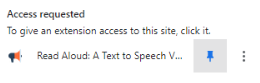
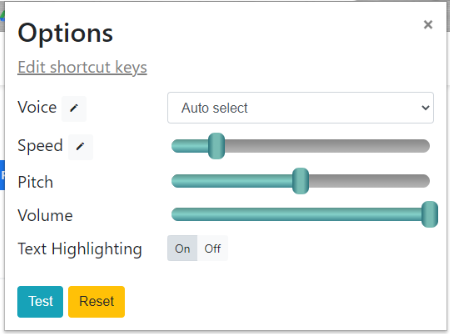
The next thing you will need to do is install the Chrome extension Read Aloud. Pin the extension to the tool bar. Then when you are in the Google Doc you click the extension and it will scan through the document first then begin reading it. I found turning the speed down significantly to be very effective. Check out the video example below.
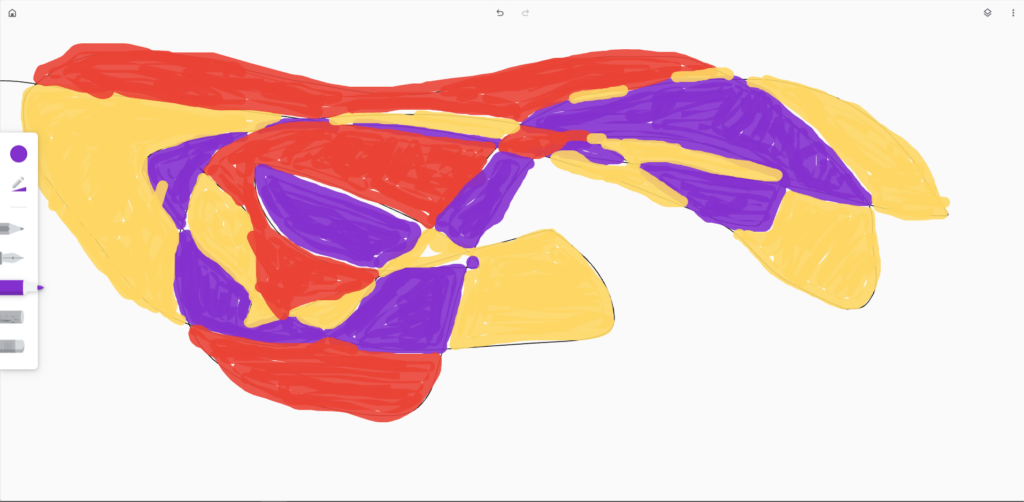
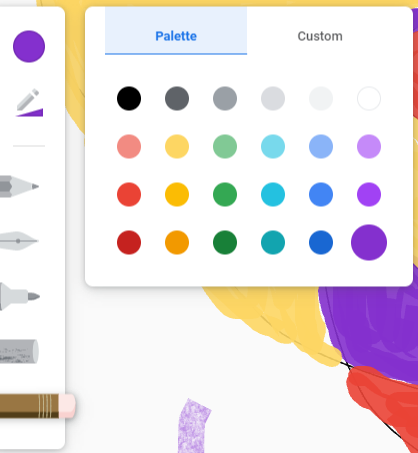
No, not that Canvas. This is not the LMS. This Canvas is literally a blank canvas white board. You can pull up this white board to quickly sketch an idea that you need to share with your students. You can save (download image) your sketch if you think you might need it later. There are pencil, pen, marker, and crayon tools as well as an eraser. There is also a customizable color palette.
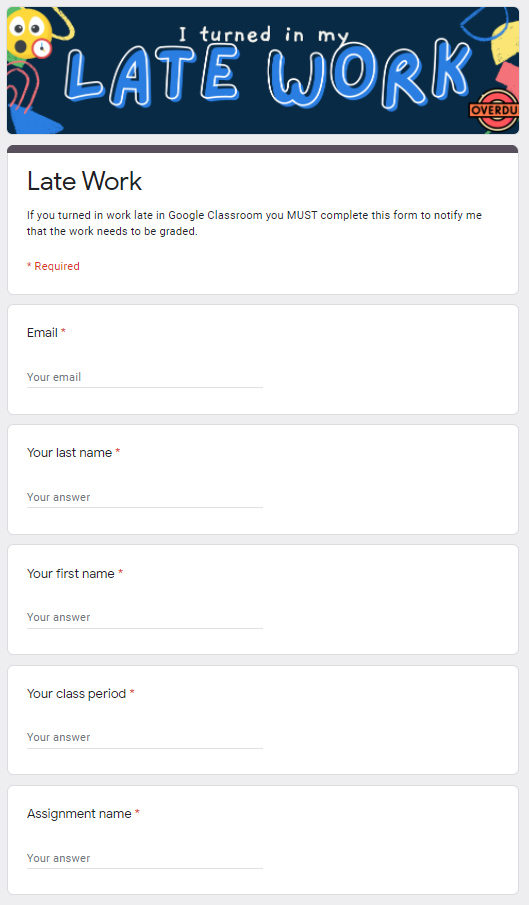
One of my biggest struggles with Google Classroom was keeping up with late work. Actually that is a struggle all the time regardless of Google Classroom. My solution to keep on top of grading late work is to have students complete this Google Form to let me know they turned in late work. I know I can check the spreadsheet of these form responses for new late work, grade it, update it in my gradebook, then mark on this spreadsheet that it was done. I would tell my students your late work doesn’t exist without this form. It is the only way I will know to go find it and grade it.
I updated the link below where it should work now. I have learned more about sharing copies of Google Forms over the years, sorry.
TV 411 is another source for educational videos over a variety of topics from Reading, Writing, and Arithmetic to Science and financial topics. TV 411 uses practical and relevant videos to teach concepts in a way that shows their value to the learner.
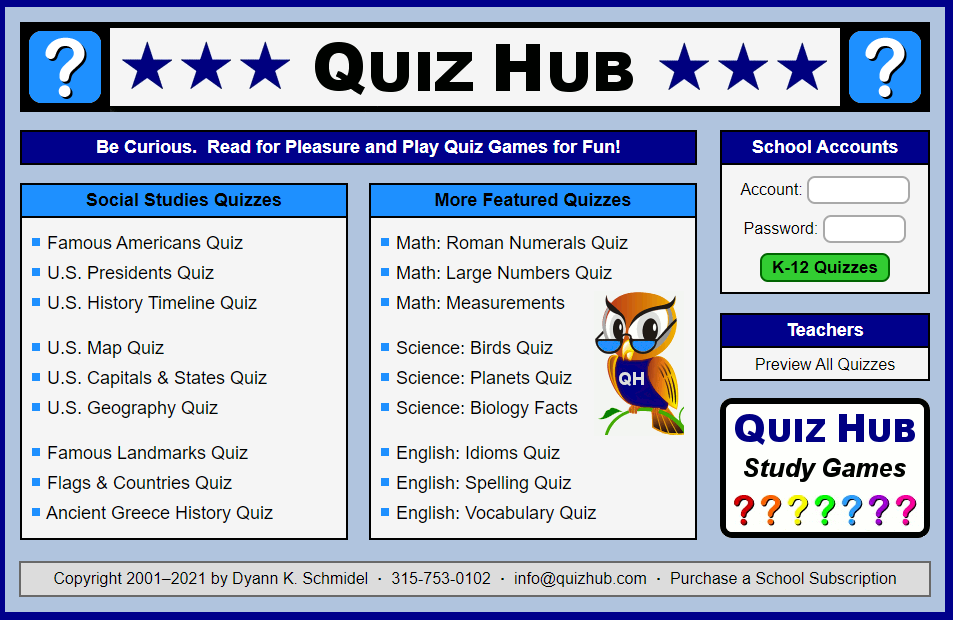
Quiz Hub has fun quiz games to help your students practice their knowledge and skills.
There are social studies quizzes about identifying U.S. States and Presidents. Students can also practice their state capitals.
Math quizzes include measurements and place value matching.
Science quizzes cover Planets and Biology.
English Quizzes reinforce knowledge about idioms, spelling, and vocabulary.
Solve Me has some neat little math puzzles and challenges.
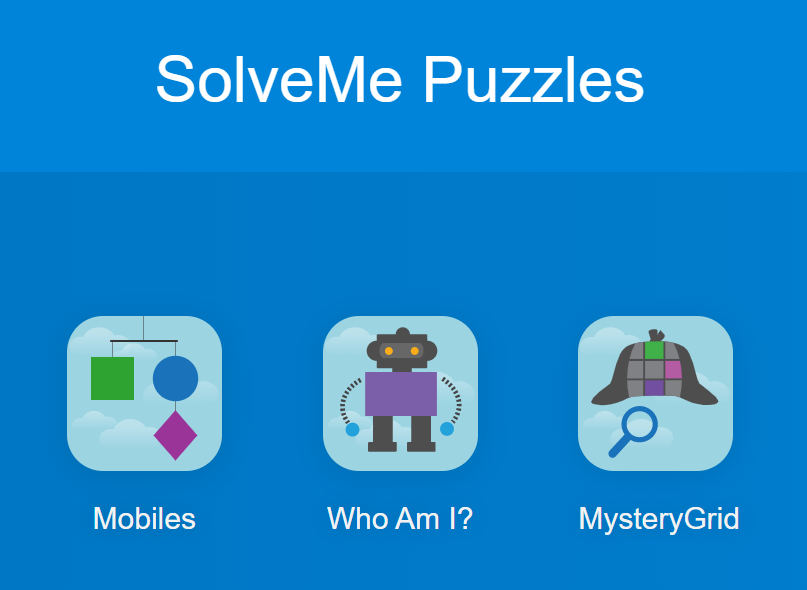
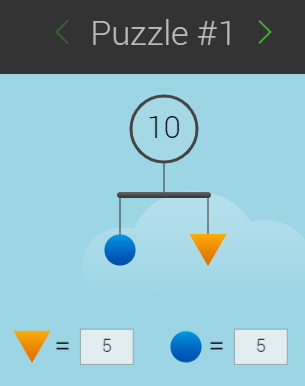
Mobiles challenges students to determine the value of shapes with a very basic algebraic like strategy.
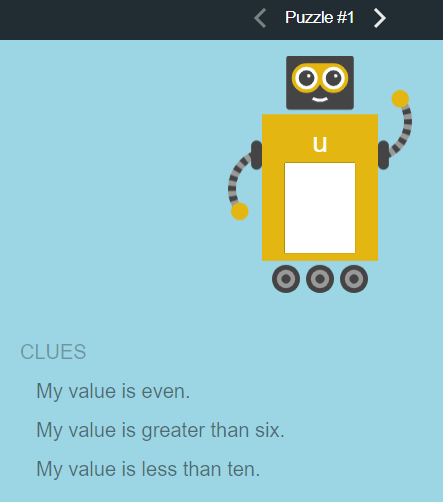
Who Am I? is riddle like game that requires students to apply their knowledge to guess the number.
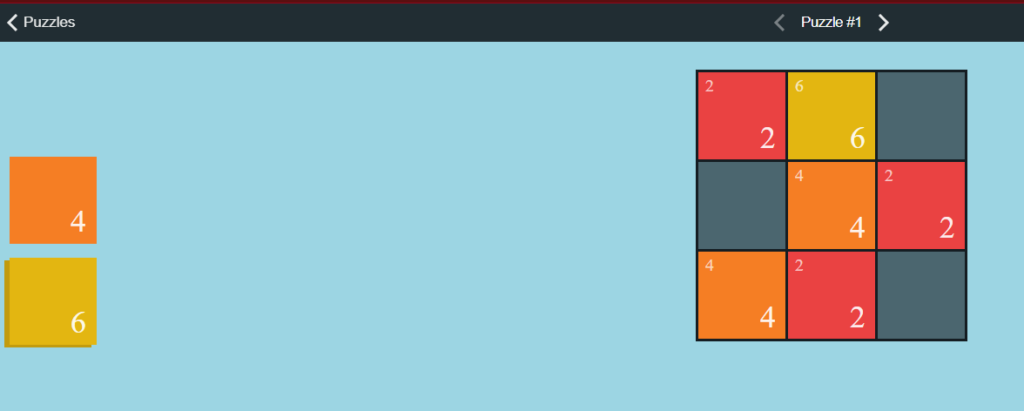
Mystery Grid is a Sudoku like logic puzzle game.
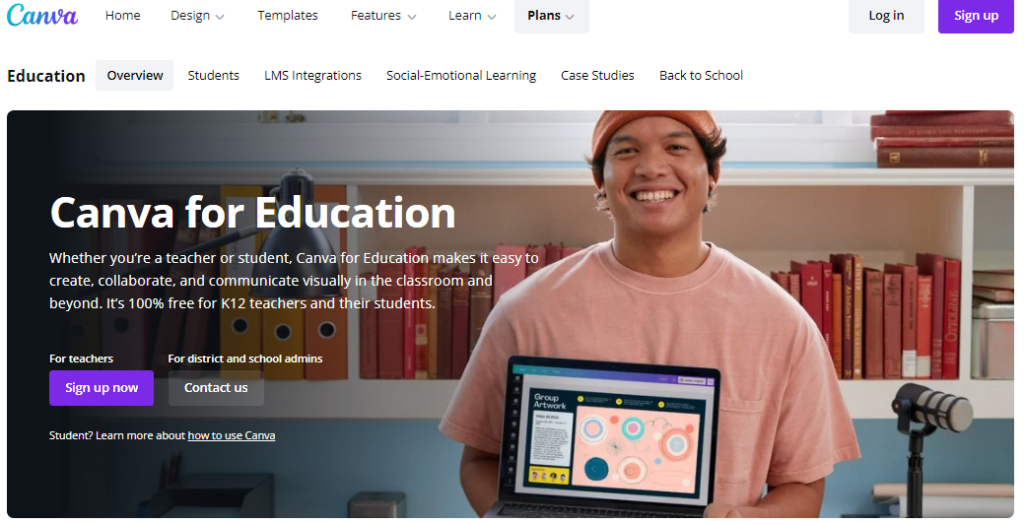
Canva is one of my favorite tools. I use Canva almost daily. Canva is a fantastic graphic arts publishing software. Anytime I need to produce a graphic for an activity or a logo like the one above, I use Canva.com.
Canva has a very good selection of free templates and even images you can use when creating your graphics. At one point I paid for Canva for a couple of months then I realized I wasn’t even using the paid features so I went back to the free only account.
Canva has templates for many different social media image and banner sizes to help you create graphics that perfectly fit your need. With Canva you can create invitations, infographics, brochures, cards, YouTube thumbnails, desktop wallpapers, photo collages, and animations. Canva even allows you to create videos, presentations, and office files from templates.
You should even get your students producing projects with Canva.com.
Did you know that you can set a required minimum answer length on Google Forms responses? This feature works with Short Answer, Paragraph Answer, and Check Boxes. This feature can help you prompt those reluctant writers to expand a little more on their ideas. You can even set up a custom error message if the minimum requirement isn’t met. It does work the other way as well so you can set a maximum if you need to force a concise short answer from those overly productive advanced students. Check out the quick walkthrough below.
Are you experiencing students turning in Google Forms blank with no answers. There is an incredibly straightforward solution to that problem. Simply make each question required. Below is a quick example of how to do that.
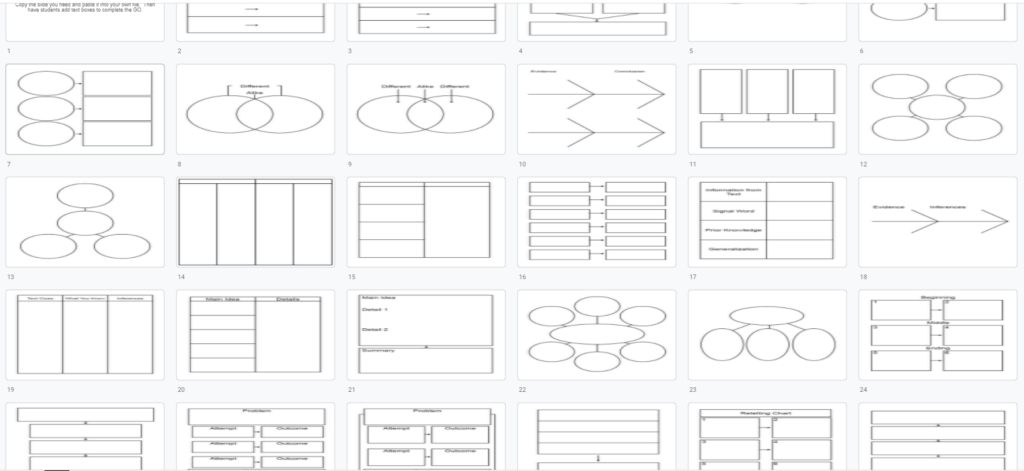
Here is a large collection of Graphic Organizers that are embedded into Google Slides. These graphic organizers are the background images on the slides. Teachers simply need to copy these slides and paste them into a slide show they are going to assign or share with students. Students then add text boxes to complete the activity.
BoddleLearning.com is a fun and engaging K-6 Math Learning Game that uses AI to differentiate the experience for your students. Students get to customize their character and their home, play a fun basketball bonus game, and practice appropriate and necessary math skills based on their TEKS.
Here is a link to a .PDF guide book created by Eduphoria for Aware online student testing.
Below is my Guide based on my specific experience with it.
How to login
Your log in will be your six digit Student ID# (Lunch #)
Your campus will have it’s own unique password which will be provided that day
What the test looks like
You can move through the questions with the Next and Previous buttons at the bottom of the screen or clicking on those question numbers
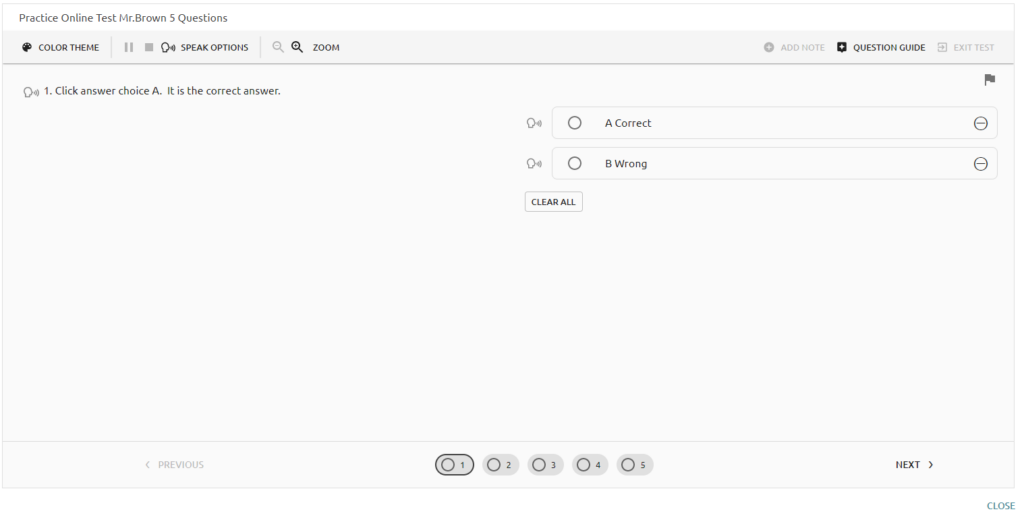
Available features and accommodations
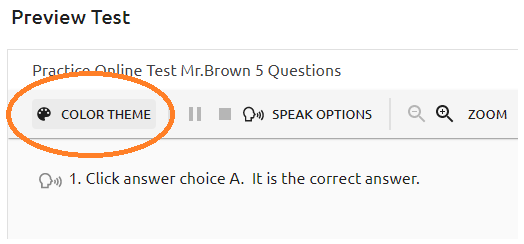
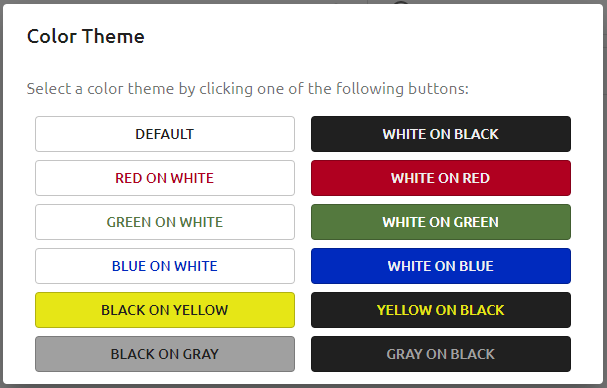
Color Theme changes are available to accommodate visual needs
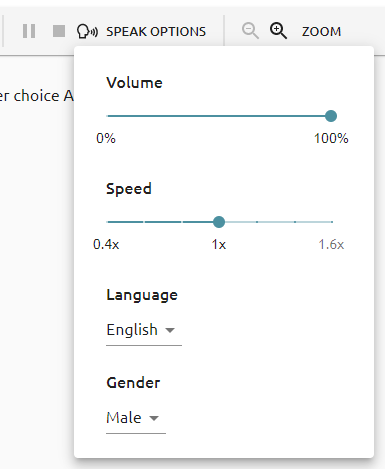
Speak Options provide oral testing accommodations with the ability to adjust the volume and playback speed. Students can choose to have the text read in an English or Spanish accent. Playback can be a male or female voice.
I noticed when testing that if I double click to highlight an entire question or answer choice it won’t read it. I had to click and drag the highlight to get it to recognize and read the words.

However there is a little Speak icon next to each question and answer choice that you can click to have them read without highlighting.
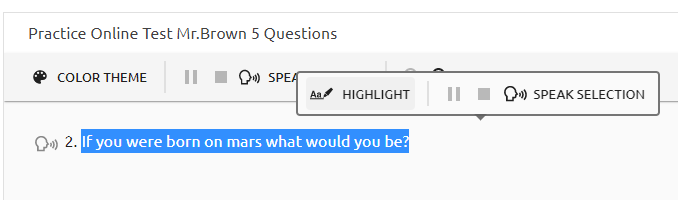
You can click and drag or double click to cursor highlight text then select the HIGHLGHT tool to highlight it yellow for your reference
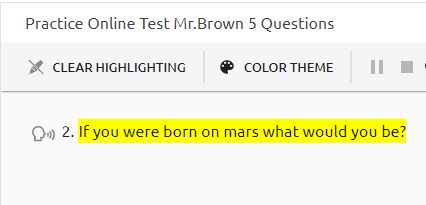
The “CLEAR HIGHLIGHTING” button at the top of the screen is the only way to remove highlighting
Zoom will increase the size of the question and answer choices while adjusting it to fit in the screen.

You can strike through and eliminate answer choices
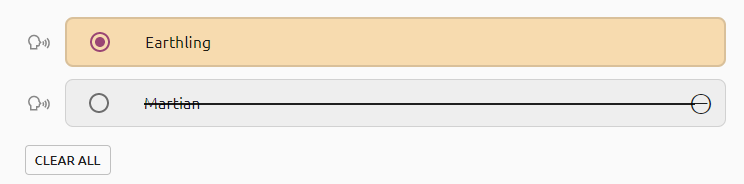
You can flag questions to return to later if you were not sure about it. The Question Guide will remind you which questions you flagged as well as which ones you still have to answer.
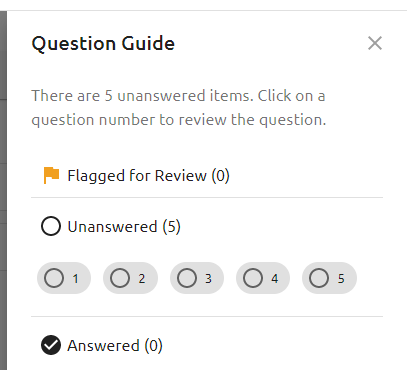
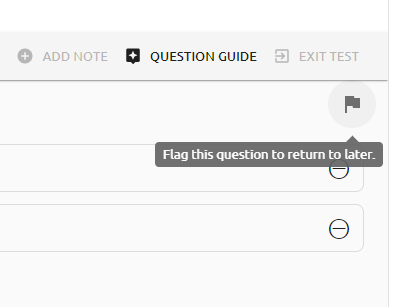
The question numbers at the bottom of the screen will also indicate if they have been answered

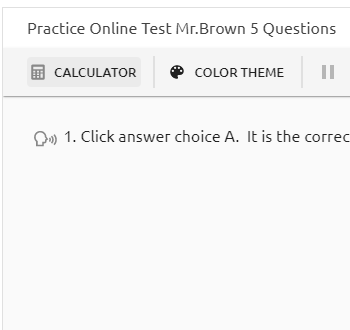
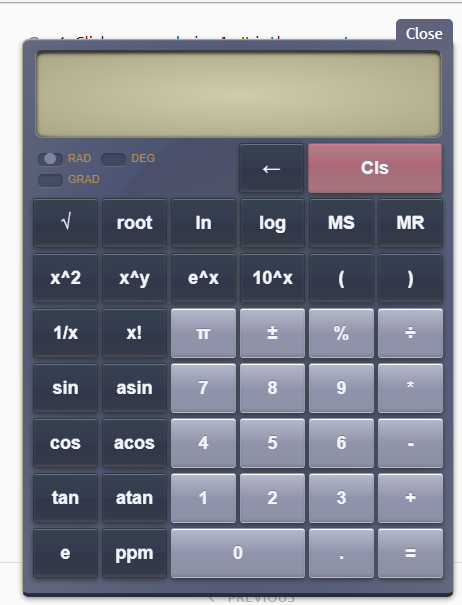
You also might have a Calculator button to launch a calculator for use on some tests
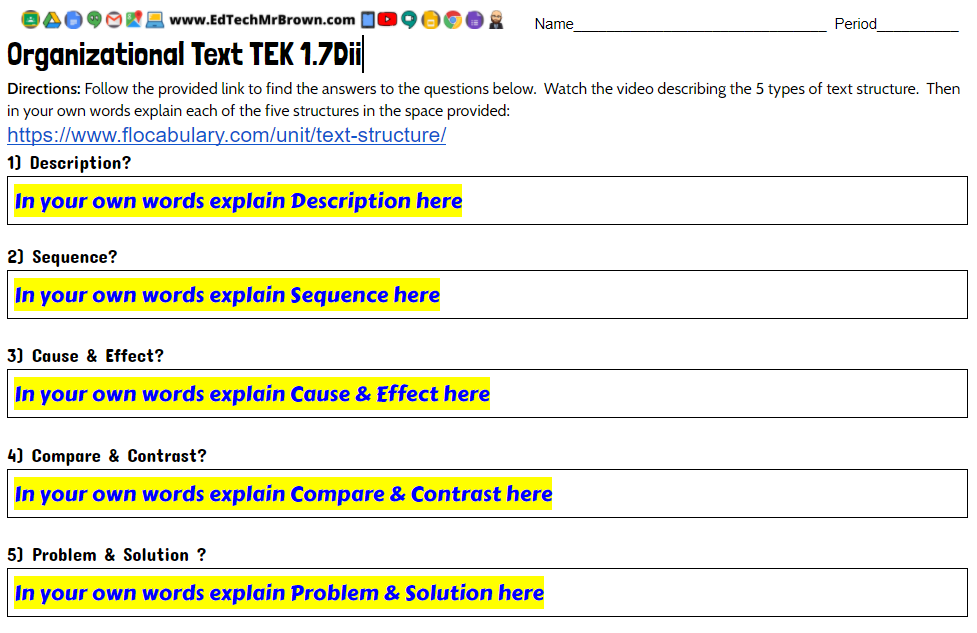
This Google Docs WebQuest activity directs students to a Flocabulary video that reviews the five type of organizational text structure. This activity can be assigned in Google Classroom.
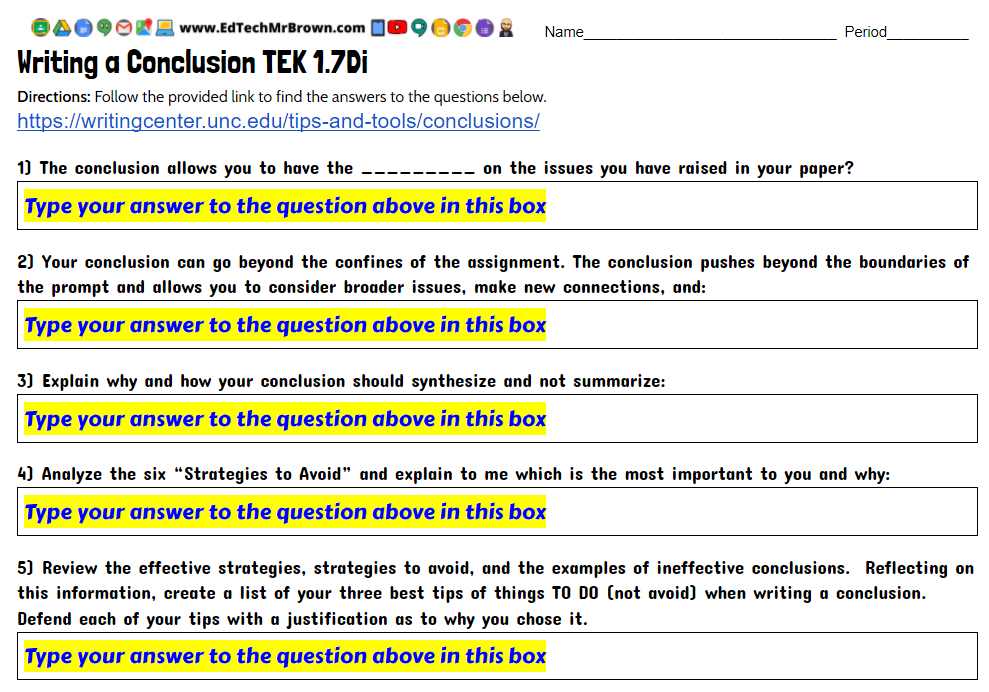
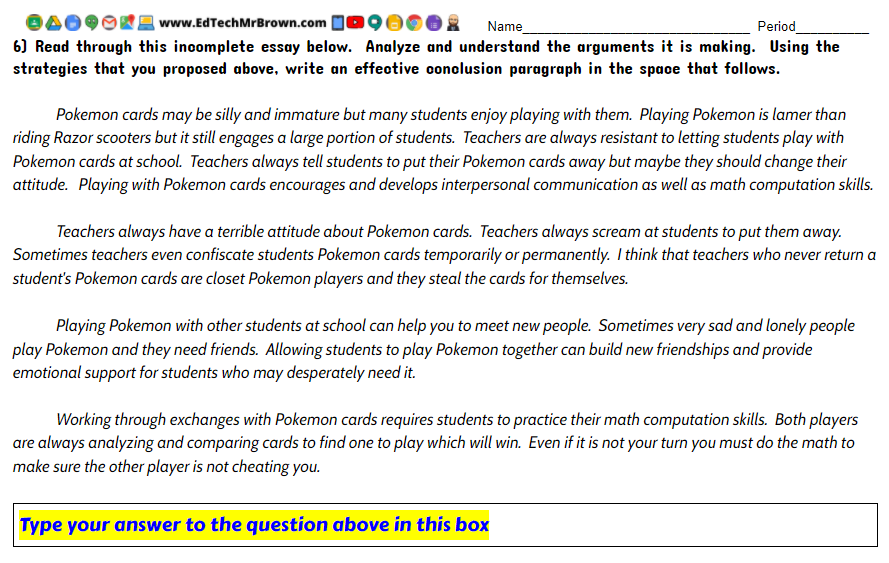
Here is a digital activity created for English 1 TEK 1.7D1 ( thesis, evidence, examples, conclusion ). This is a WebQuest that sends students to the university of North Carolina at Chapel Hill online writing center. Students read the strategies and answer a set of questions that accompany the web page. To wrap up the activity students are asked to apply the strategies they identified and write a conclusion paragraph for a provided incomplete example essay.
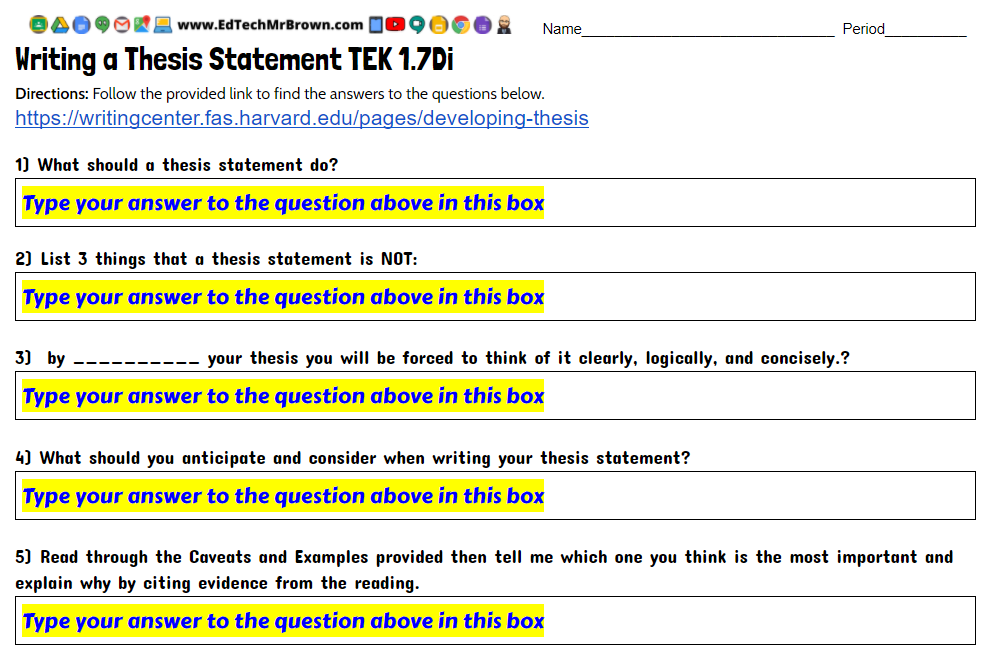
Here is a webQuest about writing a thesis statement using the writing center website for Harvard University. This activity is created in Google Docs and designed to be assigned in Google Classsroom. This activity reviews do’s and don’ts of writing a thesis statement.
Below are some ideas technology tools specific to ELAR that will hopefully inspire you to develop some great new 1 to 1 digital lessons with Chromebooks in the classroom. These ideas are in no particular order but they are hand selected just for you. These tools also integrate with Google Classroom.
I am also creating activities that are specific to your English 1 TEKS. You can find all of these under the Activities and Resources Menu at the top of the website.
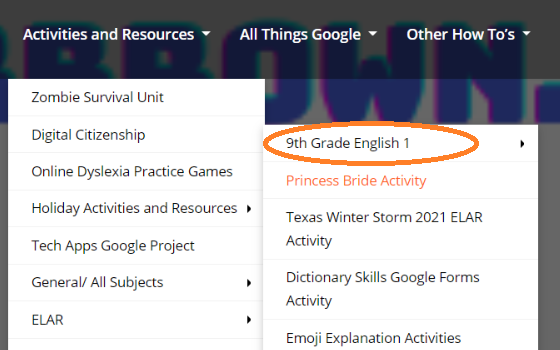
English I TEK Specific Activities
Teachermade
Teacher made should be a regular go to for converting existing assignments that you already have in Docs, Word, .PDF, ect. This tool will make your activities “digitally do-able”. It will allow you to add student answer options to those existing activities; including Open ended answer, multiple choice, check boxes, annotation tools, fill in the blank, drop down selection, matching, T/F, and more. OH and it will grade the activities for you.
My previous Teachermade post and video
Edpuzzle
Edpuzzle lets you take you use YouTube videos far more effectively in class. Edpuzzle lets you assign YouTube videos to your students to watch individually on their devices while answering embedded questions through out the video. Edpuzzle will also give you reports on how much of a video students actually watched.
More information on EdPuzzle.
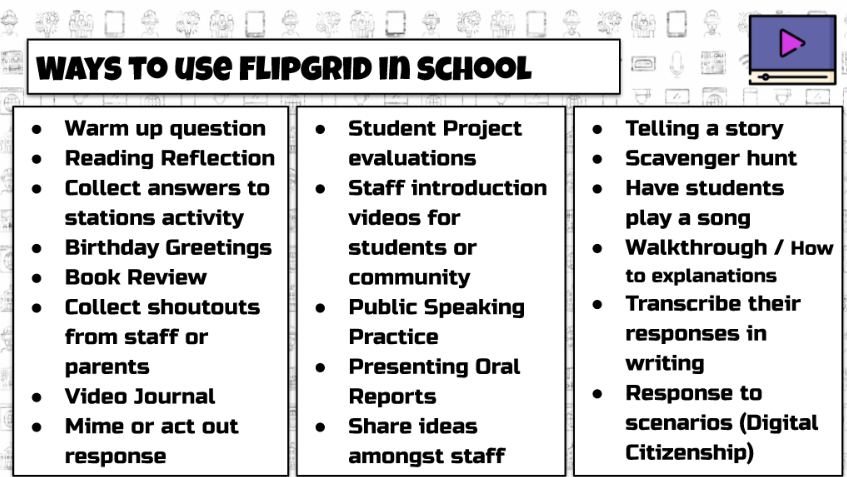
Flipgrid
Flipgrid lets your students reply to a prompt verbally by recording or uploading a video response. This can definitely be used with the Chromebooks and doesn’t need to be done on a cell phone. If you need to check for understanding and come up with grades, listening to flipgrid responses can be far faster than reading written responses.
More information on Flipgrid
Google Forms
Google Forms is a great tool for creating assessments for your students. Forms lets you embed images as questions and/or answer choices. Reading selections can be screen clipped and uploaded as images. Forms can use multiple choice, short answer, drop down, and check boxes all which can be graded automatically. Forms can also take paragrpah answers from students.
More information on Google Forms
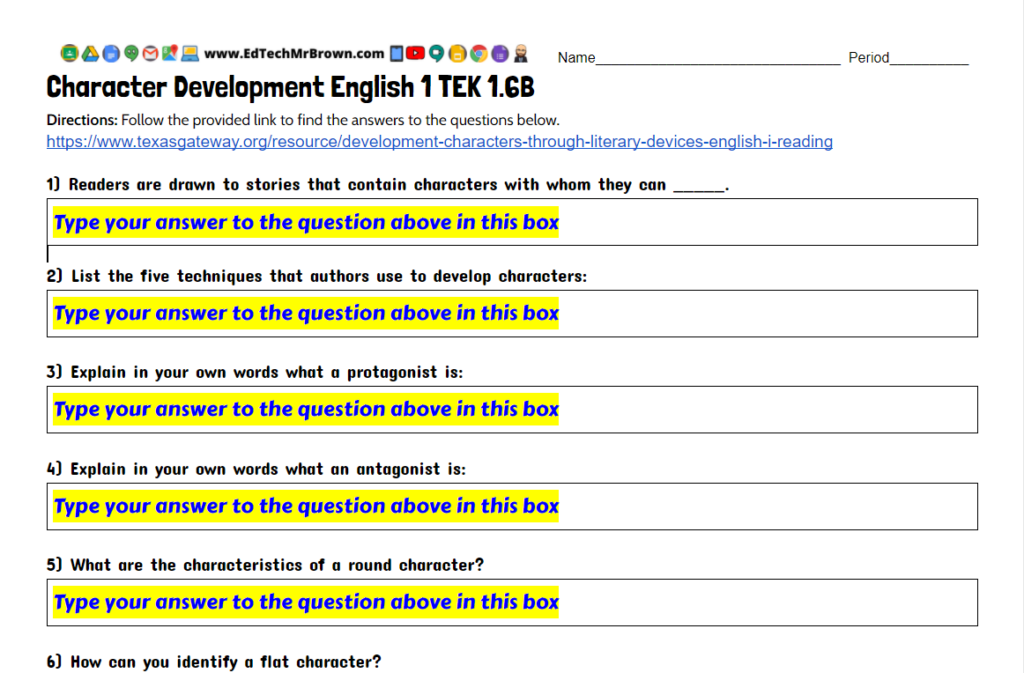
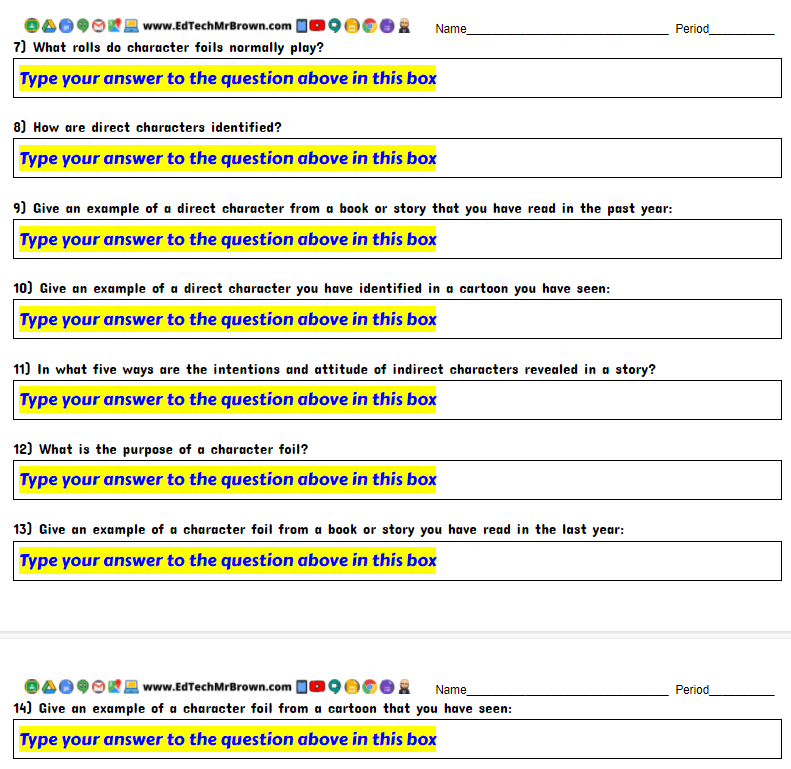
Here is a webquest activity made in Google Docs and designed to be assigned in Google Classroom. This activity reinforces the techniques that authors use to develop believable characters by reviewing the definitions and challenging students to identify relevant examples in their own reading and cartoon watching.
Here are two activities for you that require students to infer and provide evidence to support their answer. These activities should be completed prior to reading the book Never Take a Shark to the Dentist. You can have students complete these activities entirely before reading or each question before it’s corresponding page in the book. The buttons below will force you to download your own copy of the activity that you can share with your students to get their results. These activities are made in Google Forms and designed to be posted in Google Classroom.
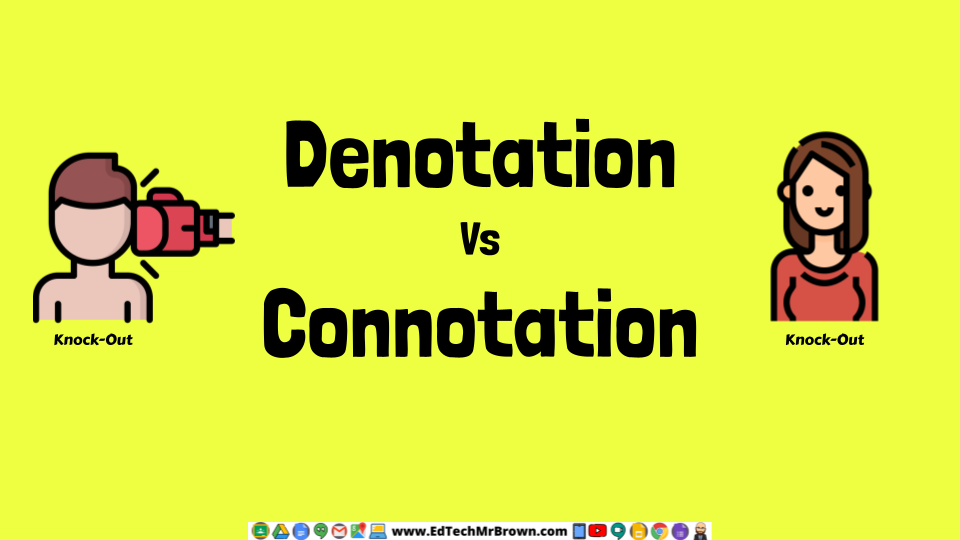
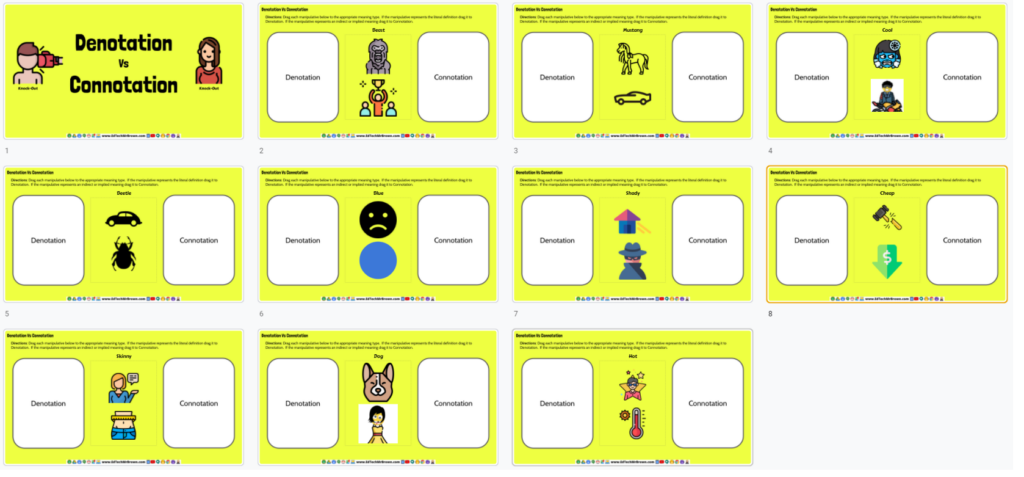
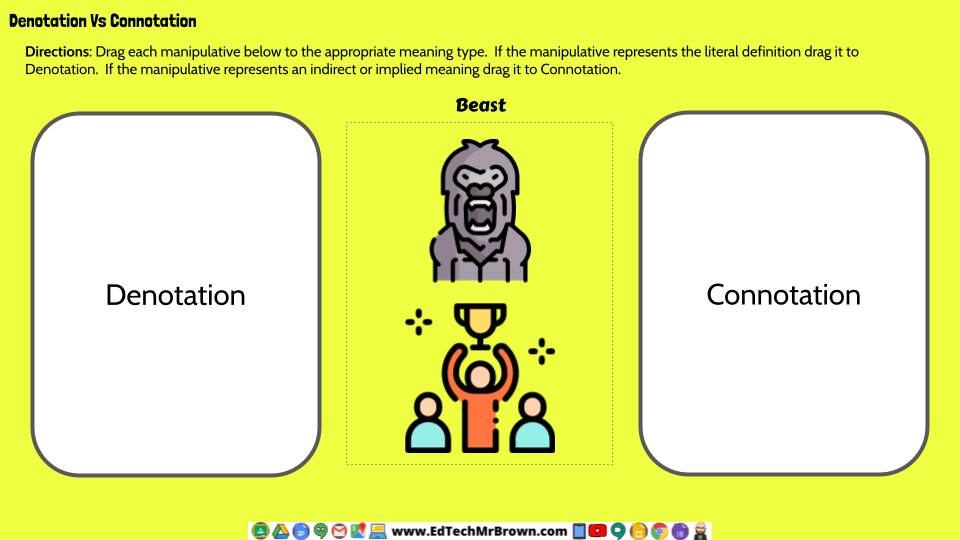
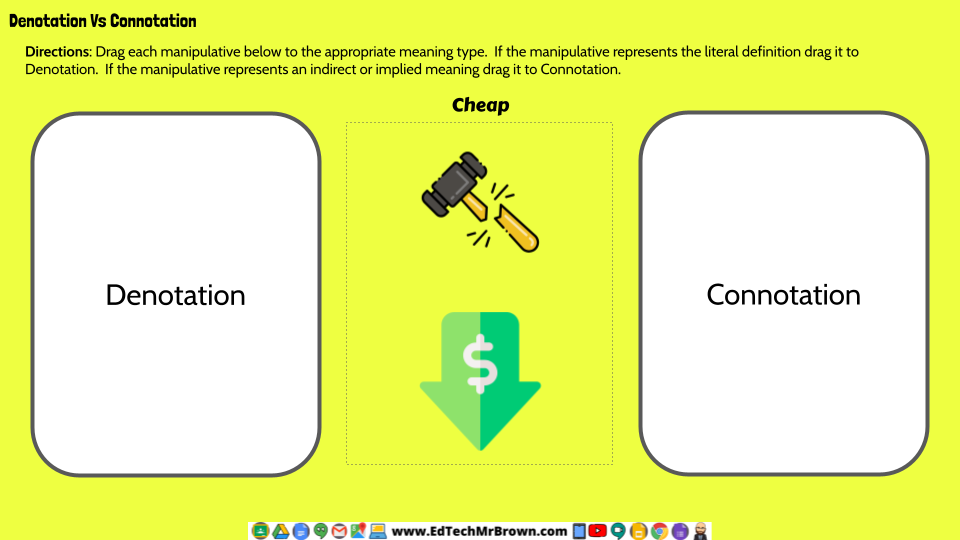
Here is a 10 slide activity that has students demonstrate their knowledge about the differences between denotative and connotative meaning of words. Students are asked to drag each visual meaning of the word to the appropriate meaning type. This activity reinforces English 1 TEK 1.2B.